
Before you start
Use the current version of Rollnook. You can create personal sets without a community account. These guides show the guided editor in version 1.2.
What you will make
A personal set with your pieces, a simple way to play and an explanation for your players.
Choose a starting point
In Library, tap + → New Set. Choose Dice on a tray, Bag of tokens or Bag of dice. You can mix all three later.
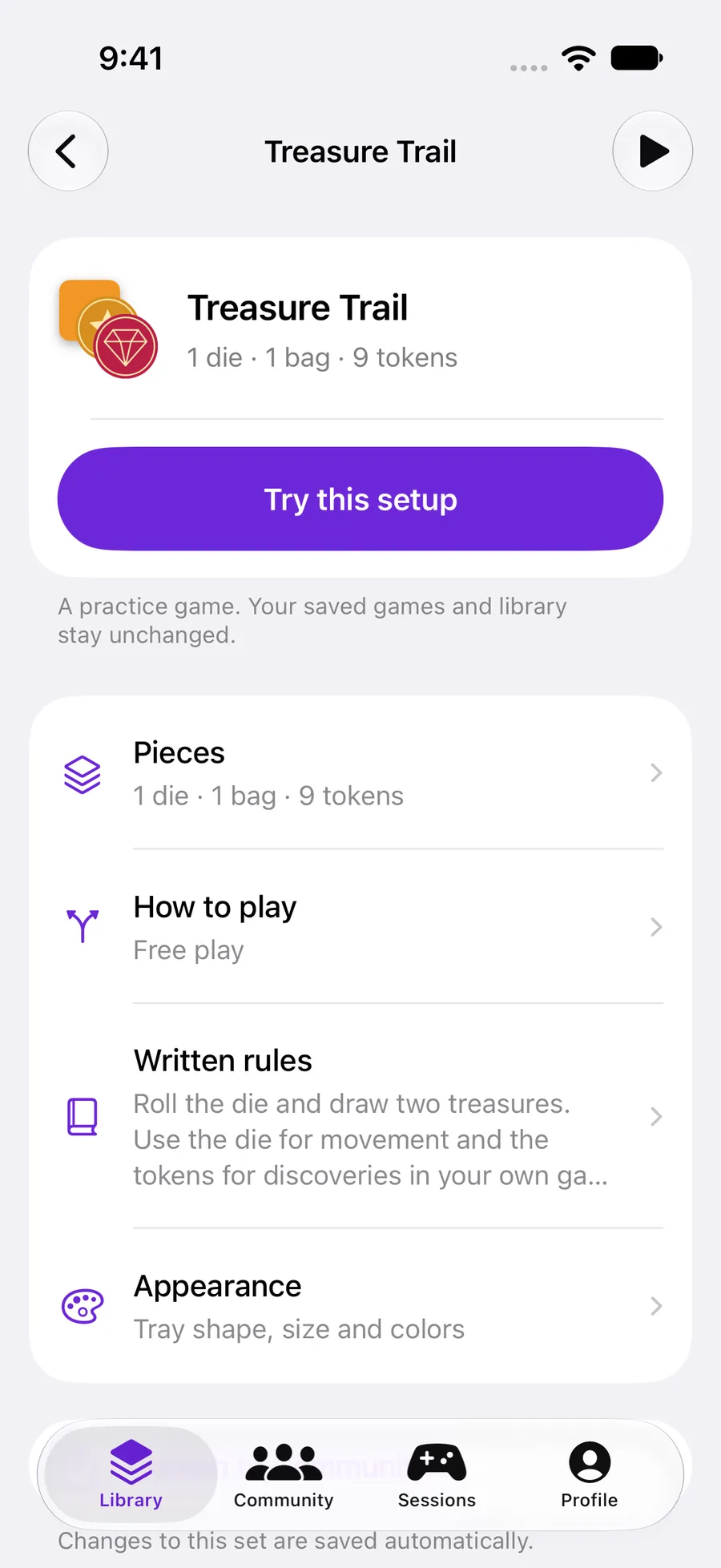
This opens a draft. Give it a name and use Pieces, How to play, Written rules and Appearance to make changes. Add saves the new set; Cancel discards the draft.
 Enlarge screenshot ↗︎
Add your pieces
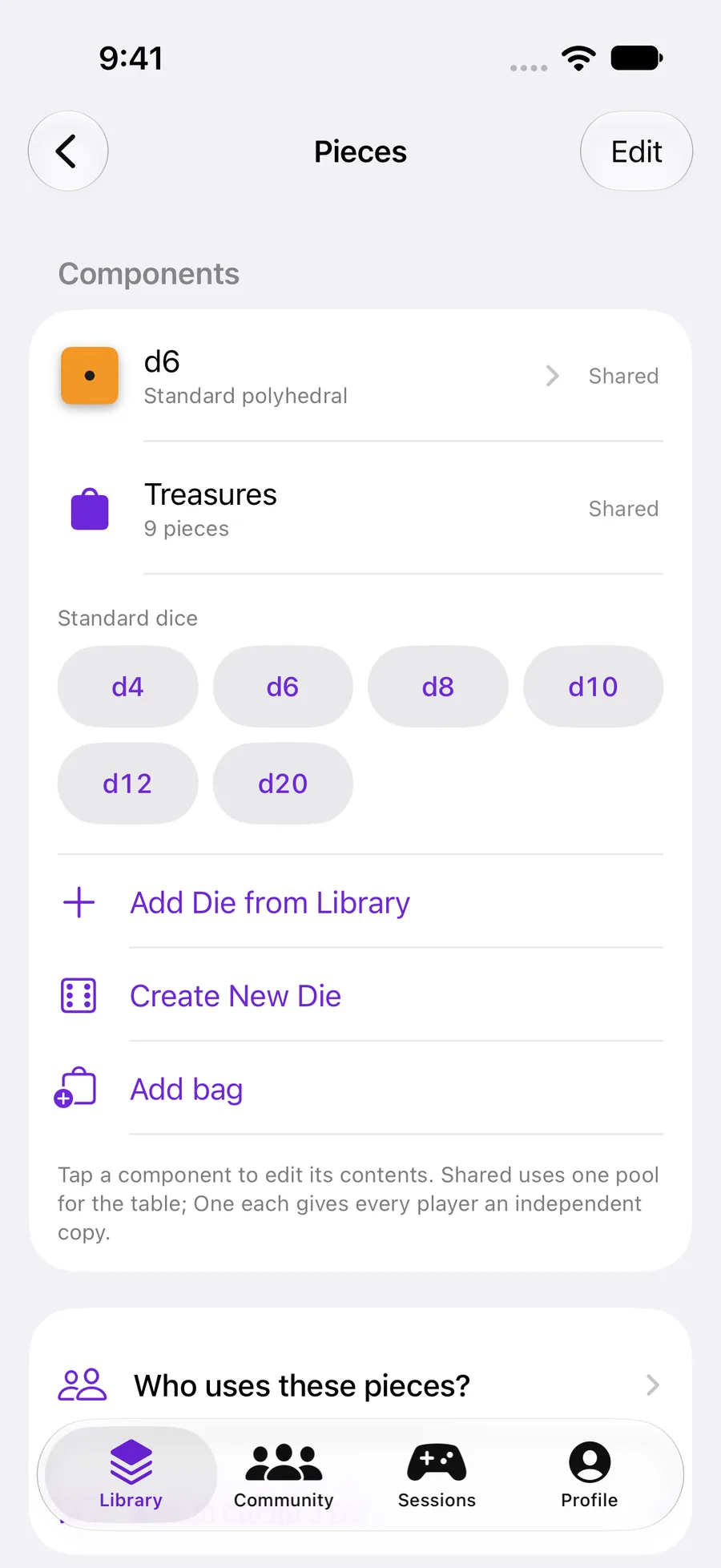
Open Pieces. For two ordinary dice, tap d6 twice. Add Die from Library reuses a design; Create New Die opens its editor before you add it.
Use Add bag → Add a token bag or Add a dice bag to create a component in this set. Open a bag to choose its contents, quantities and return behavior. A set can contain several bags alongside loose dice.
 Enlarge screenshot ↗︎
Decide who uses them
Shared gives the table a common pool. One each gives every player an independent copy. A named pile can be claimed by a player in a session.
When a design is used in other personal sets, Rollnook lets you edit the shared design or make a separate version for this set. Check the listed sets before choosing.
Keep the first version simple
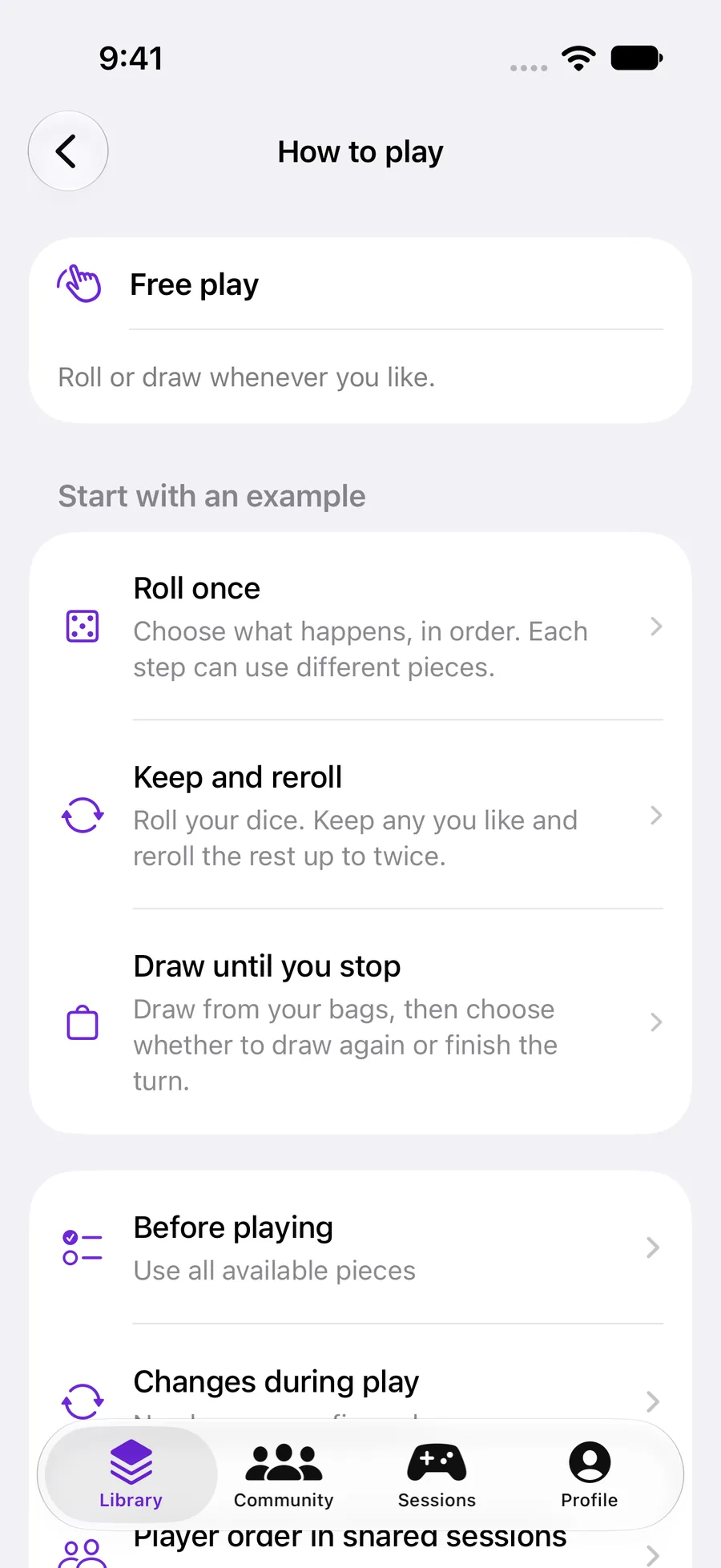
How to play starts in Free play. You can roll or draw without configuring a sequence. To add structure, choose an example such as Keep and reroll. Review it before tapping Use this example.
The Written rules section explains the game to people. It does not run automatic actions. Those belong in How to play. Appearance changes the tray.
 Enlarge screenshot ↗︎
Try, then save
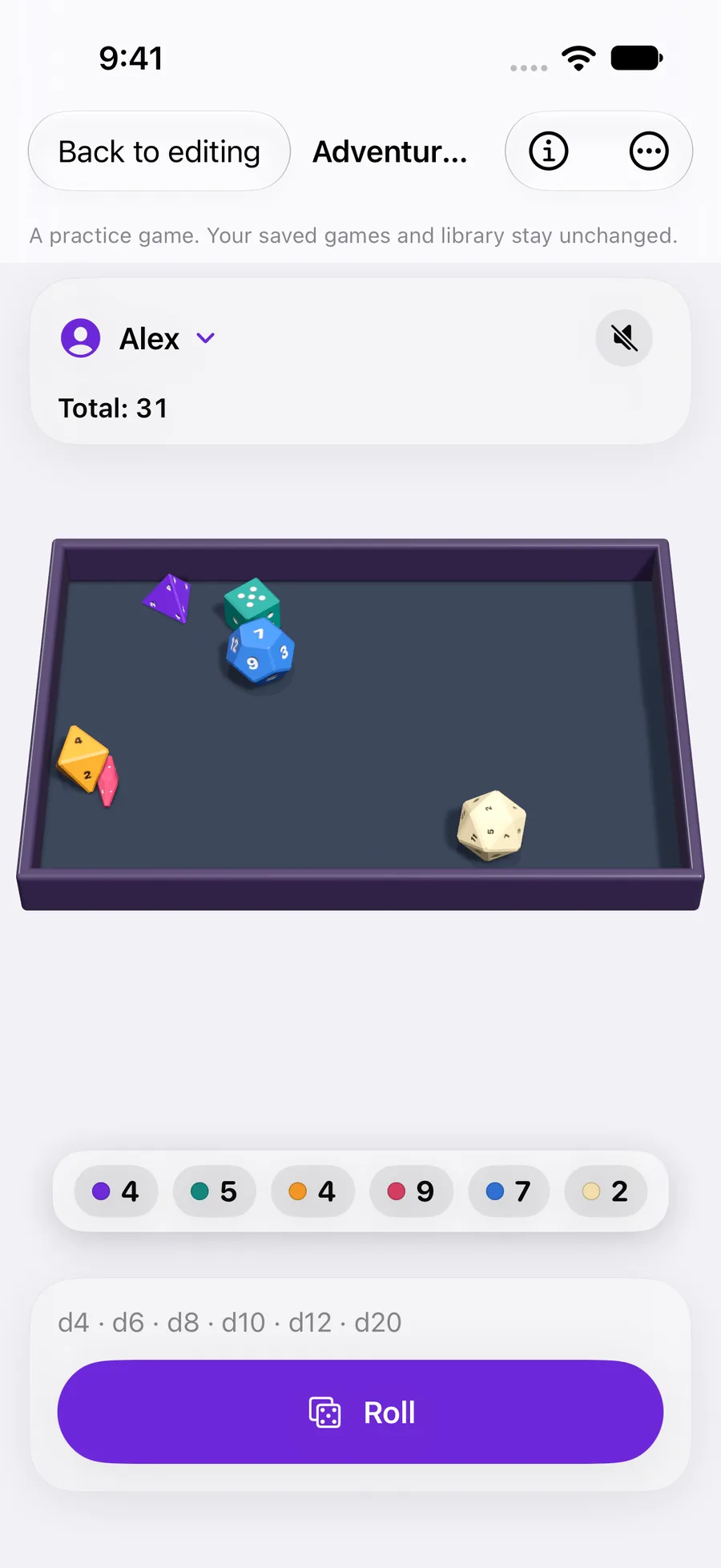
Tap Try this setup on the overview. Roll or draw in a practice game, then use Back to editing. Practice does not change the library or your saved games.
When the draft is ready, tap Add. Changes to an existing personal set save automatically. Use its Play button to open a game; create a shared session from Sessions.
 Enlarge screenshot ↗︎
YOUR TEST
Check it works.
Try the set, return to editing and check that its starting contents are unchanged. Save it with Add, then find it in My Sets.
If something feels off
Why can’t I try this setup yet?
Add at least one playable component first. A bag needs contents, and turn steps must refer to available pieces. The overview explains what is missing.
Will editing a shared design change another set?
It can. Read the list of sets using that design, then choose Edit shared design or Make a separate version.
Can I change an imported community set?
Added sets follow their published configuration. Create your own personal set to make a different setup. You can inspect an added set with the information button during play.
Where did my saved set go?
The library overview shows a few items from each section. Use See All or search to find more.